Why Your Laptop Keeps Slowing Down Under Load — And the Fixes That Actually Work
You're midway through a video export, a long compile, or an intense gaming session when your laptop suddenly feels like it's wading through wet concrete. Frame rates plummet. Render times balloon. The machine that benchmarked brilliantly out of the box now struggles to keep pace with tasks it handled effortlessly two months ago. Welcome to thermal throttling — one of the most misunderstood performance killers in consumer computing.
The good news: this problem is fixable. The bad news: most of the advice circulating online is either incomplete or outright wrong.
What Thermal Throttling Actually Is
Modern laptop processors — both CPUs and GPUs — are engineered with built-in temperature ceilings. When silicon approaches those limits (typically between 90°C and 105°C depending on the chip), the processor automatically reduces its clock speed to shed heat. This isn't a malfunction. It's a deliberate safety mechanism that prevents permanent hardware damage.
The problem is that manufacturers have become increasingly aggressive about chasing peak benchmark numbers on paper. A chip rated at 45 watts of sustained power draw might burst to 80 or even 100 watts for a few seconds to impress in short benchmark runs — but the cooling system underneath was never designed to sustain that load. The result is a machine that looks spectacular in a Best Buy demo and disappoints in real-world, extended use.
So when your laptop throttles, it isn't broken. It's doing exactly what it was designed to do. The question is whether you can push that thermal ceiling higher — or work smarter within it.
The Cooling Pad Misconception
Let's address the most popular fix first: the laptop cooling pad. You've seen them everywhere — plastic platforms lined with USB-powered fans, usually priced between $20 and $60. The marketing promises dramatically lower temperatures and restored performance. The reality is far less impressive.
Here's why: the overwhelming majority of modern laptops draw intake air from the bottom panel or sides and exhaust hot air from vents near the rear or sides. A cooling pad blowing ambient air against the bottom of the chassis helps only if your laptop actually pulls air through the bottom — and many premium thin-and-light designs don't do this meaningfully. In independent testing, cooling pads have been shown to reduce CPU temperatures by an average of just 2°C to 5°C. That margin rarely moves the needle on sustained clock speeds.
Cooling pads aren't useless across the board. If your laptop genuinely uses bottom intake vents and you're working in a warm room, a quality pad can provide marginal relief. But treating one as a primary fix for chronic throttling is wishful thinking.
The Real Culprits Behind Excessive Heat
Before reaching for a solution, it helps to understand what's actually generating the problem. Three factors account for the vast majority of severe throttling cases in laptops that are more than a year old:
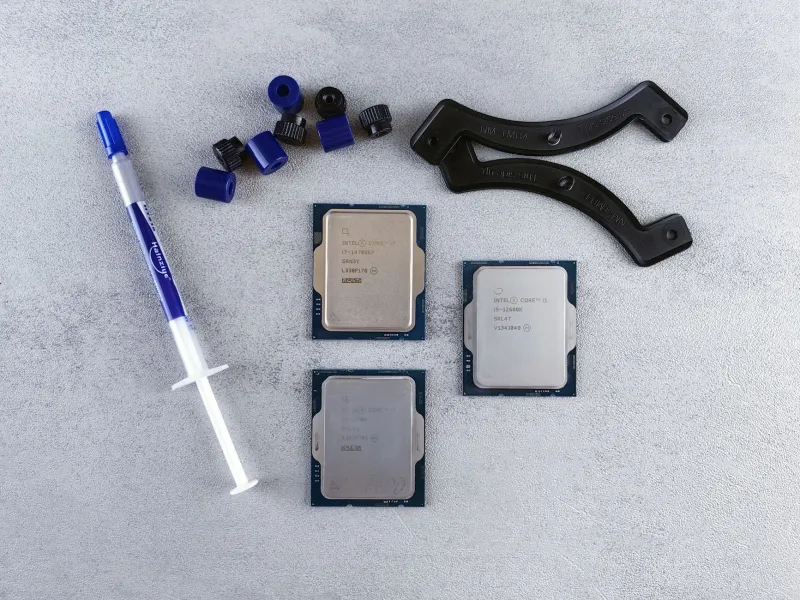
Degraded thermal paste. The thin layer of thermal compound applied between your processor die and the copper heat pipe is the critical link in your laptop's cooling chain. Over 18 to 36 months, most factory-applied pastes dry out, crack, or lose conductivity. A chip that once transferred heat efficiently can see temperatures climb 15°C to 25°C from paste degradation alone.
Dust accumulation in the heatsink fins. Even in relatively clean environments, fine particulate matter builds up inside the heatsink fins and fan blades over time. A partially blocked heatsink can cut airflow dramatically, compressing the cooling headroom available before throttling kicks in.
Aggressive manufacturer power limits. Many laptop OEMs configure their power limits conservatively in firmware to protect warranty claims and hit battery life targets. Your hardware may be physically capable of running cooler and faster than the default settings allow.
Fixes That Genuinely Move the Needle
Repasting the CPU and GPU
Replacing the factory thermal paste is consistently the highest-impact DIY intervention available to laptop owners. Products like Thermal Grizzly Kryonaut or Noctua NT-H2 offer significantly better thermal conductivity than the paste applied during mass manufacturing. Users routinely report temperature reductions of 10°C to 20°C after a repaste, which translates directly into higher sustained clock speeds.
This does require opening your laptop, which may void your warranty depending on the manufacturer and your state's right-to-repair protections. Research your specific model's disassembly process on iFixit before attempting this. If you're not comfortable with the procedure, many local repair shops offer repasting services for $30 to $80 — typically a worthwhile investment for a machine you depend on.
Cleaning the Cooling System
While you have the laptop open, clear the heatsink fins with compressed air. Hold the fan blades stationary while blowing air through the fins to avoid spinning the bearing beyond its rated RPM. This step alone can recover meaningful airflow and should be done annually on any laptop used for demanding workloads.
Adjusting Power and Fan Profiles in Software
Most Windows laptops expose some degree of power limit control through manufacturer utilities — Lenovo Vantage, ASUS Armoury Crate, Dell Command Center, and similar applications frequently include performance mode toggles. Setting your machine to a "performance" or "turbo" mode raises fan speeds proactively, before temperatures spike, rather than reactively.
For more granular control, tools like ThrottleStop (for Intel platforms) and AMD's Ryzen Master allow users to adjust processor power limits directly. Undervolting — reducing the voltage supplied to the CPU while maintaining clock speeds — can lower temperatures by 5°C to 15°C on Intel chips, though this capability was restricted on many newer platforms following Plundervolt vulnerability disclosures. Check whether your specific CPU generation supports undervolting before investing time in this approach.
Rethinking Your Work Environment
This one sounds almost too simple, but ambient temperature matters. A laptop struggling in a 78°F room will throttle sooner than the same machine in a 65°F space. Ensure the exhaust vents are never obstructed — using a laptop on a bed, couch, or pillow is one of the fastest ways to manufacture a thermal crisis. A hard, flat surface or a simple laptop stand that elevates the rear of the chassis does more for airflow than most powered cooling pads.
Setting Realistic Expectations
Some throttling is unavoidable in thin-and-light designs. When manufacturers shave a chassis down to 14mm, there is simply a finite amount of copper and airflow available. If you're running sustained multi-hour workloads that demand full CPU and GPU performance simultaneously, an ultrabook was never the right tool regardless of how well you maintain it.
For users in that situation, the honest recommendation is either a thicker gaming or workstation-class laptop — where the chassis is engineered for sustained load — or a desktop workstation paired with a travel-friendly secondary device.
But for the majority of laptop owners experiencing degraded performance on machines that once ran cool, the fixes outlined here are practical, affordable, and genuinely effective. Start with the software adjustments, graduate to cleaning and repasting, and you may be surprised how much performance was sitting dormant underneath a layer of dried compound and accumulated dust.